Managing product returns efficiently is crucial for maintaining customer trust. Our new Return Portal system provides a streamlined way for your customers to initiate returns and for you to manage the entire process from your dashboard.
Step1: Brand-Level Configuration
Before diving into the portal settings, you must ensure your brand-specific links are correctly configured.
Navigate to Settings > Brands.
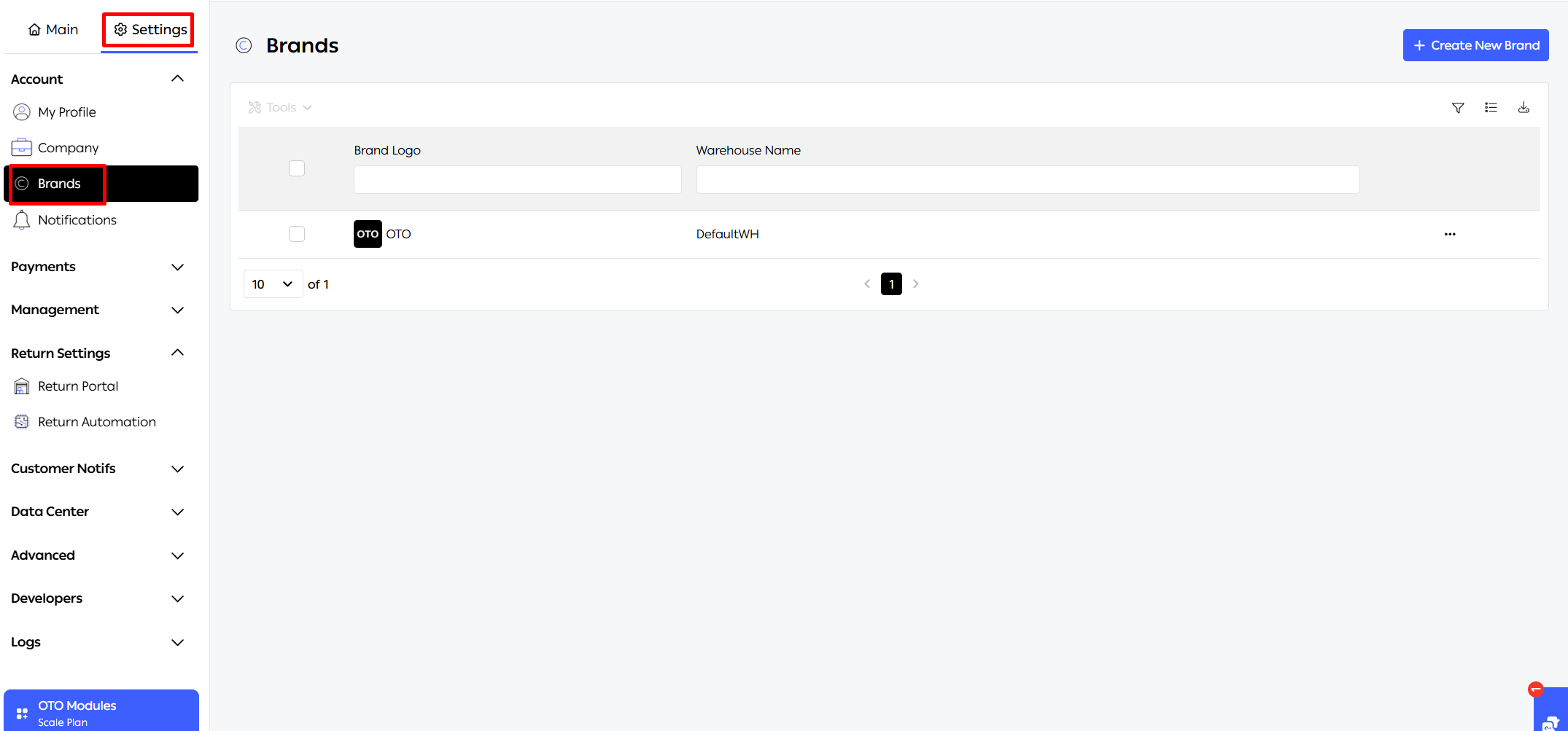
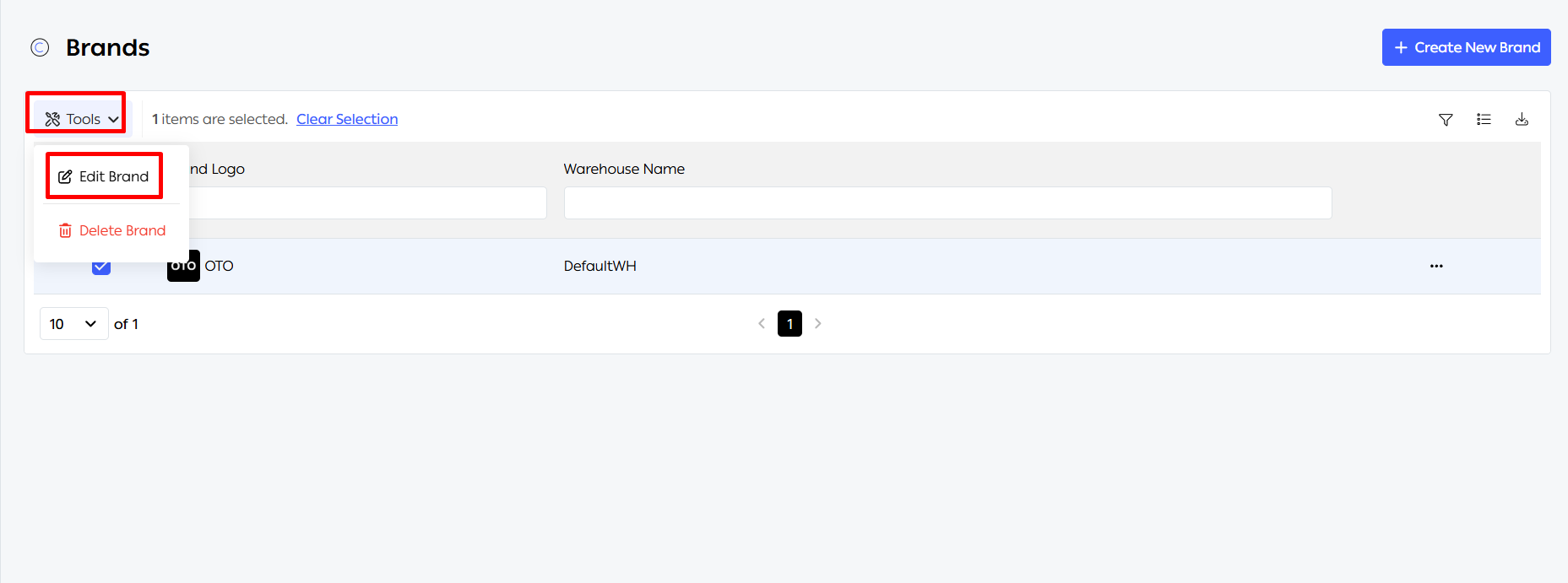
Select your brand and click Edit Brand.
Shipping Portal: You will see a new field for the Portal URL. This is the link you should place on your website or support channels to give customers direct access to their orders.
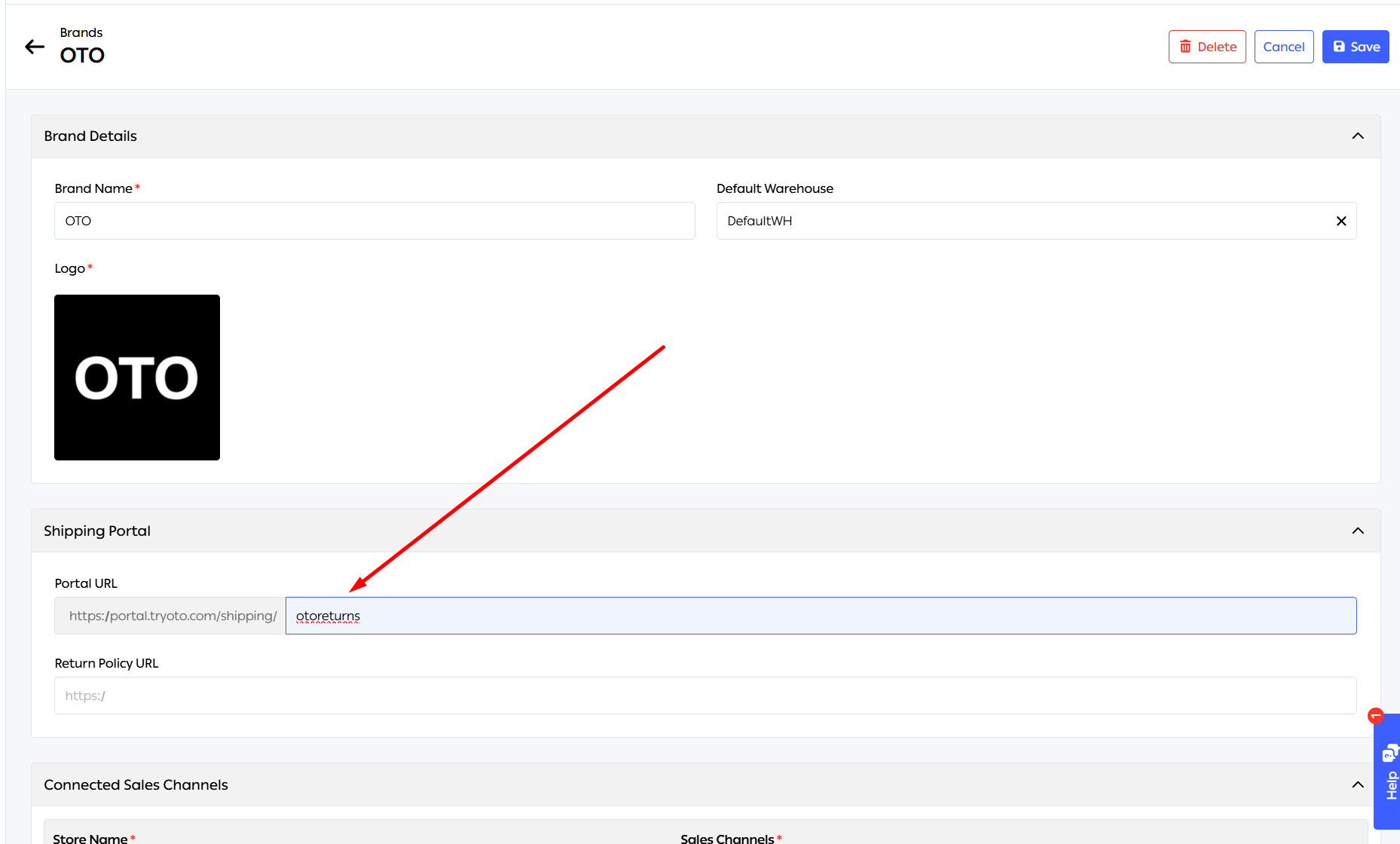
Return Policy URL: Enter the link to your official return policy document. This ensures transparency and helps manage customer expectations.
Step 2: Configuring the Return Portal
Once the brand details are set, you can customize the portal's behavior under Settings > Return Settings > Return Portal.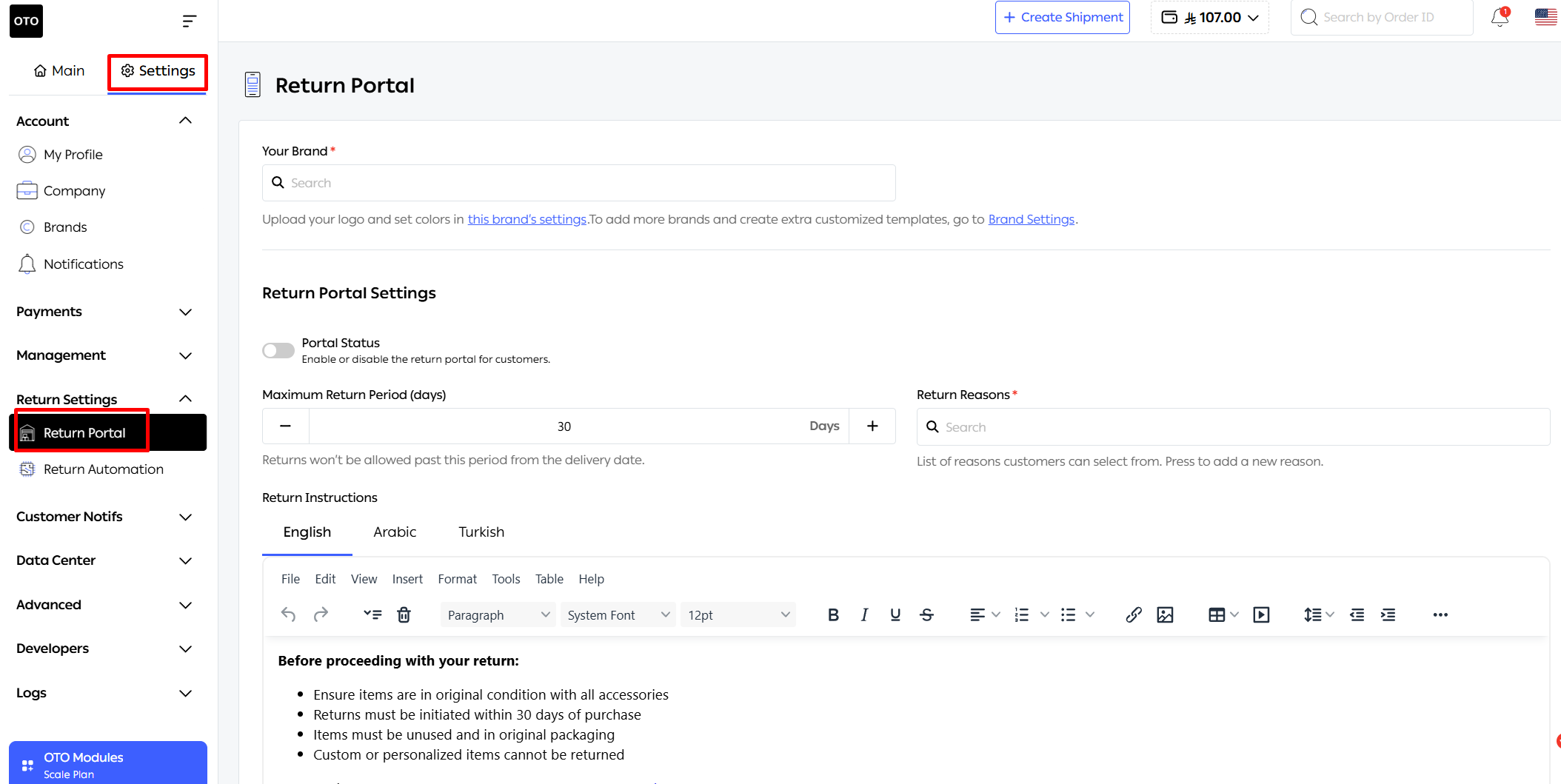
1. General Branding & Status
Select Brand: Choose the specific brand you are configuring.
Header & Footer: Toggle the "Use Branded Header/Footer" options to ensure the portal matches your brand's aesthetic.
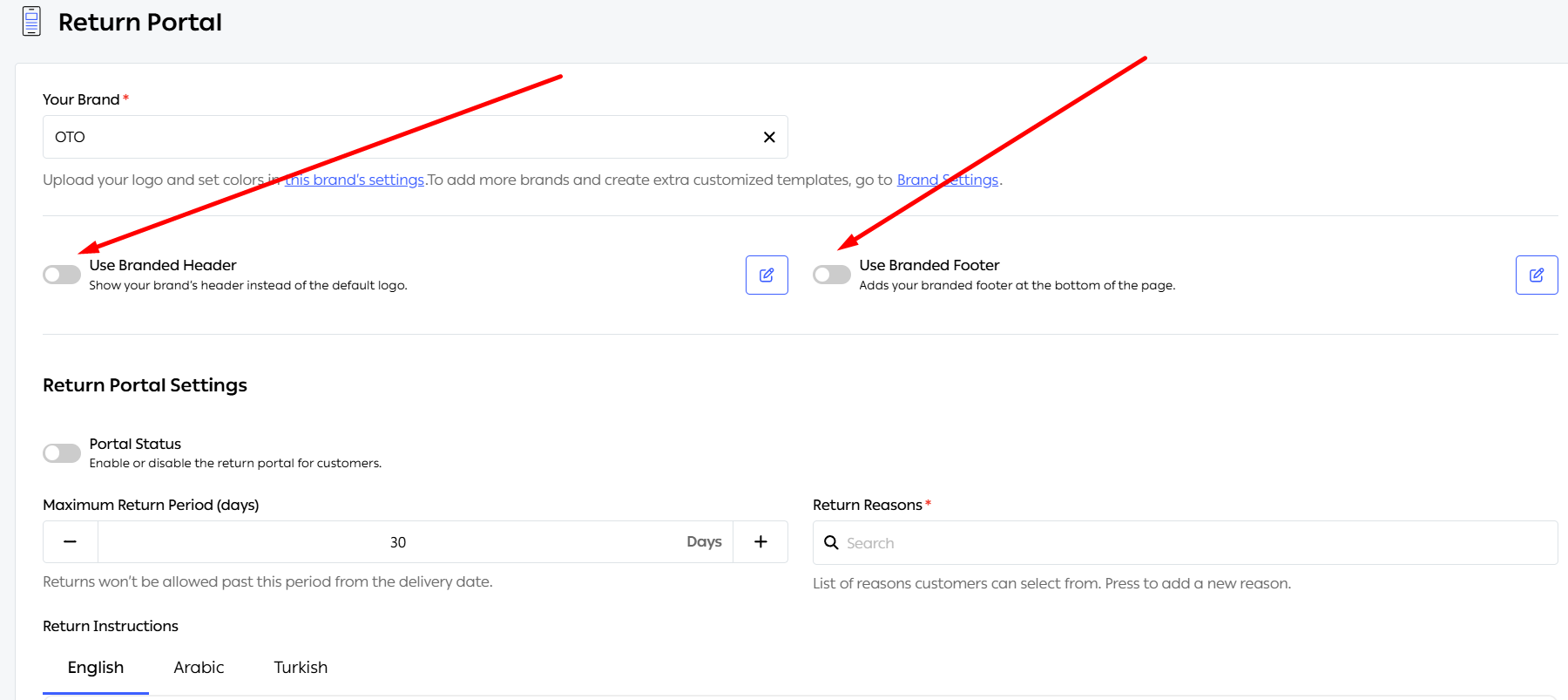
Portal Status: Use the master switch to enable or disable the return portal for your customers at any time.
2. Return Rules & Reasons
Return Period: Set the "Maximum Return Period" (e.g., 15 or 30 days). The system will automatically prevent customers from initiating returns after this window has passed.
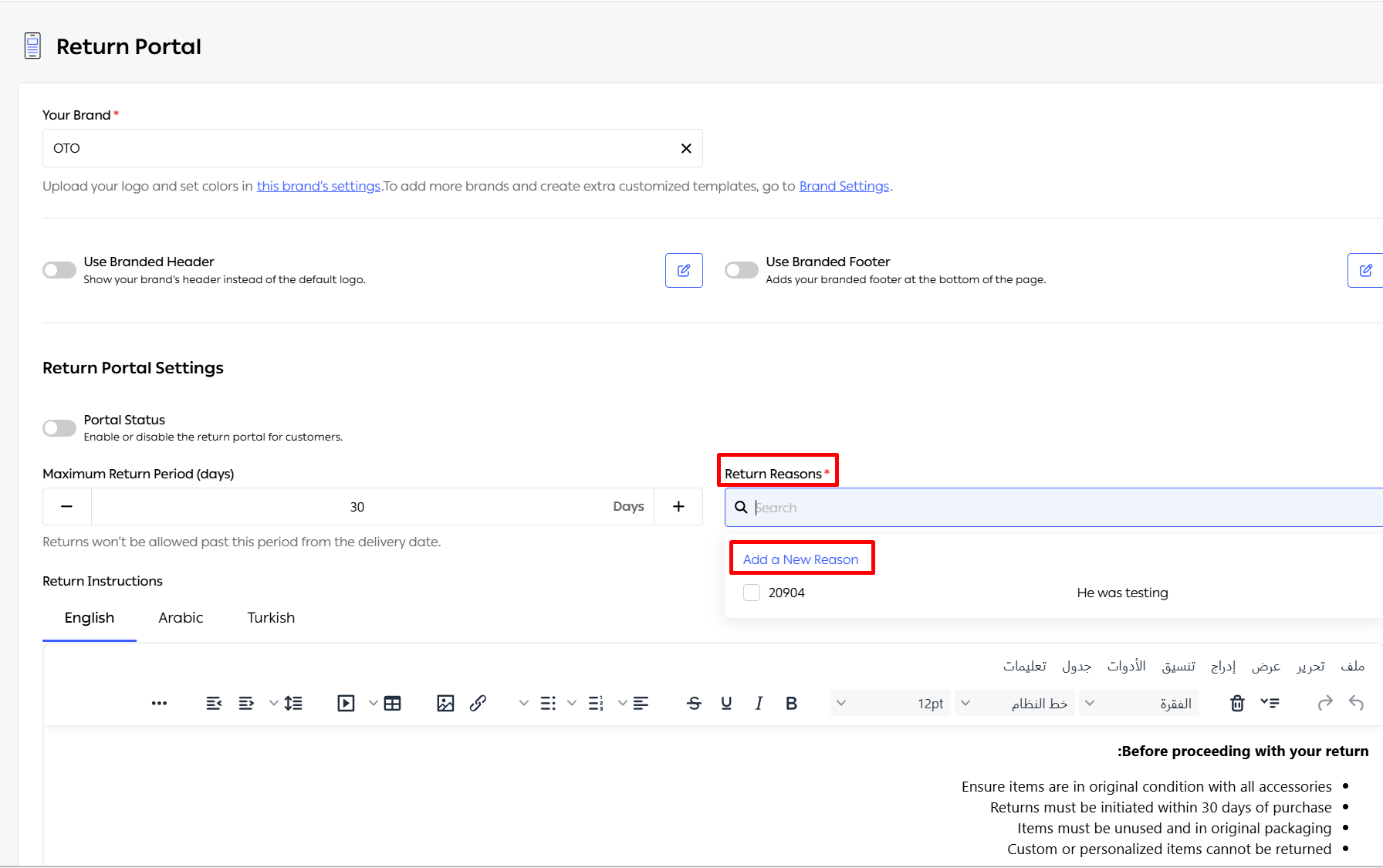
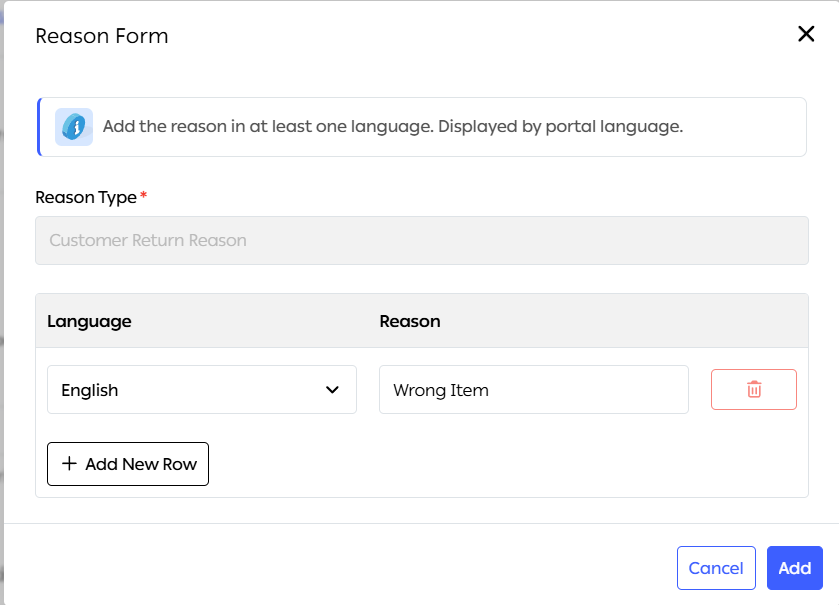
Return Reasons: You can create a list of reasons (e.g., "Wrong Item," "Damaged," "Changed Mind"). These can be localized into multiple languages including English, Arabic, and Turkish.
3. Customer Instructions & Attachments
Return Instructions: Use the text editor to provide clear, step-by-step instructions (e.g., "Items must be in original packaging").
Photo Attachments: Enable this to allow customers to upload images of their items. This is particularly helpful for verifying damage claims.
Step 3: Defining the Return Process
You can choose which logistics options to offer your customers:
Pickup: The carrier collects the item from the customer's address.
Drop-off: The customer takes the item to a designated carrier location.
In-Store: The customer returns the item to a physical branch. If enabled, the customer will be prompted to select a specific branch from your list.
Refund & Exchange Options
You can toggle which types of resolutions you offer:
Money Back
Exchange
Store Credit
Step 4: Advanced Customization & Preview
At the bottom of the settings page, you can further refine the user experience:
Advertisement Options: Add custom banners or link your Instagram posts to the portal.
Colors & UI: Under Advanced Settings, you can customize background colors, button colors, and text styles to match your brand identity.
Live Preview: Toggle between Mobile and Desktop views to see exactly how your portal will look to your customers before you hit Update.
Was this article helpful?
That’s Great!
Thank you for your feedback
Sorry! We couldn't be helpful
Thank you for your feedback
Feedback sent
We appreciate your effort and will try to fix the article